
Too many notifications!

I see a lot of phones with dozens of unread notifications. With every app sending you
notifications, it is easy to miss the important ones, so what can you do about it? Easy, it just
takes a few minutes to clear most of them permanently.

Have a look at your notifications (pull down from the top of the screen).
On an Android phone (Samsung, Nokia etc):
You can usually swipe a notification left or right to remove it, but it will not stop the app from
sending you more. To stop them permanently, go into your settings and find apps and notifications, then notifications. It will show all the apps that can send you notifications – turn off those you are not
interested in, but leave things like Phone, Messages etc. Sometimes you can even select the type of notification you would like by tapping the entry for
the app and only turn off the unwanted ones, it depends on the app.
On an iPhone:
Swipe left on one of the notifications you’d like to get rid of.
Tap “Manage” to get rid of future notifications from the app that sent the annoying message.
“View” shows you more about the message and “Clear” remove this notification but will not stop
them from coming back.
If you do this for any notification you don’t want you will only receive the important ones and
your screen will look a lot tidier and your phone will actually only tell you what you want to know.

Facebook problems

“My Facebook has been hacked!” Well, probably not. It most likely has been cloned. In
other words, no-one found your Facebook password, but what they did is create a new
Facebook profile with your name and photos on it. And then they send friend requests to
your friends to eventually hit them for money.


The best way to avoid this, is to lock down your profile and make everything only visible to
your friends (and only accepting friend requests from people you know personally and are
not already friends with). Sadly, there are a number of places where you have to do this in
your settings, and it is easiest on a computer, but can also be done on a phone. So click on
your profile picture, select “Settings and Privacy” and then “Privacy”. Now under “Your
Activity”, “How people find and contact you” and “How you get message requests” change
everything to Friends, especially ‘Who can see your friends list’ and ‘Who can see your
future posts’, you can also change the audience for past posts to Friends.
Now go to Profile and Tagging and again change everything to friends and turn on
reviewing.
Now go back to your profile page and check what you have written under ‘About’ – this is
always public so make sure you do not give away to much about yourself. Especially under
Contact and basic info I would lock down your birth date.
Your profile pictures are always public, so make sure you don’t have a photo of your
address or other details.
All this will not make you totally secure, but it will make your profile less interesting to bad
actors.

Since this article was written, Facebook has actually made it a bit easier and collected most of these settings in an area called privacy review or similar (they tend to change things occasionally), which is still accessible through settings as described above.

Computer Jargon

There is a lot of jargon around in the tech world, and it is not always obvious what these terms mean.

Here is a small list of commonly used words and their explanations.

Desktop The screen that appears on the computer soon after the computer is turned on. It
contains a number of icons, or images, that you can click on to start programs.

Taskbar – this usually at the bottom of your desktop and shows icons of the programs you use
mostly. You will also see the Start button here, as well as the date, time, volume, and other icons
you wish to add. Apple Mac users may be more familiar with the term “dock”.

Browser – a program used to find information on the Web. Examples are Google Chrome,
Firefox or Microsoft Edge.
Address bar or box – the narrow, rectangular box on the topmost part of a browser window
where you can type in a web address (e.g. google.com.au)

Bookmark, sometimes also known as Favorite – a way of saving a webpage so you can easily go
back to your favorite locations on the Web. On Google Chrome, you can bookmark by clicking
on the star on the rightmost part of the address bar.

Search engine – programs that search the web for specified keywords and returns with a list of
web pages where the keywords are found. Commonly used search engines are Google, Bing and
Yahoo!

Link or hyperlink –a highlighted or underlined feature on a web page that, when clicked, takes
you to another web page. When you point to an underlined word or image, you will know that it
is a link when your cursor turns into a pointing hand.

Invisible connections

Let’s continue with our tour through computer terms that get used all the time. What do they really
mean? All the following transmission formats are essentially radio waves, just as in the old ‘wireless’ 😉

Mobile Network: the signal is sent from mobile phone towers over a wide area up to a maximum of
about 30-40 kms but can be stopped or weakened by buildings, hills etc.. Your phone links to this signal to make and receive phone calls and send/receive text messsages (SMS). It also allows you to connect to the internet with your phone (if you have a data plan) to access more information, go on social media and more.
This network is also used if you have a ‘Home Wireless’ device that you can carry with you to connect
your laptop/tablet to the internet.


Fixed Wireless : The poor brother of the NBN for those who cannot get fibre cables to their house – an
aerial on a transmission tower sends a signal to modem/router via your roof aerial to connect you to the internet.

Satellite internet works similarly, but the signal is sent by a satellite, not a tower.


Wi-Fi: when you connect your computer, laptop, phone, tablet and more to your modem/router or to a business’s modem (like in a library). It usually only works within the building or just outside of it.


Bluetooth: connects 2 devices over a short distance (up to 3–5 metres) mostly used to connect
headphones to phones/laptops or phones to your car radio.


NFC (Near Field Communication): that’s the ‘tap and go’ when you use your phone or smartwatch to pay at a check-out. It only works on contact or a very short distance (a couple of centimetres).

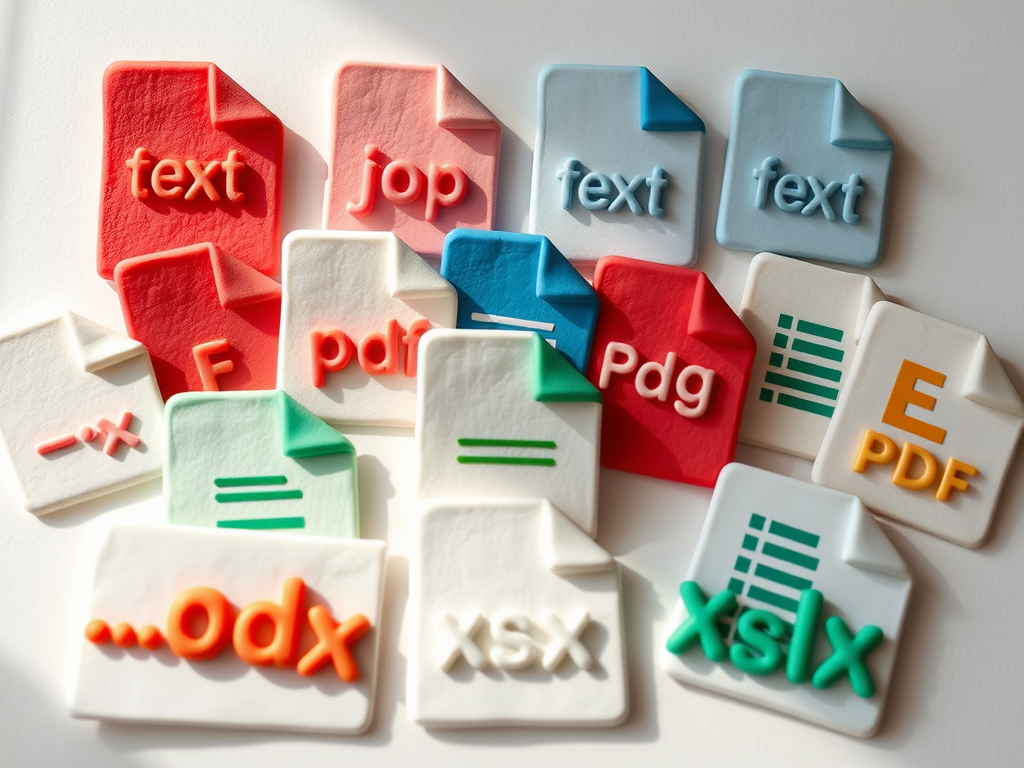
.doc and .exe and .pdf – oh my!

Continuing on with the explanation of computer terms, today we are looking at file types.
Every digital file has an extension, a 3 or 4-letter code after the name, separated with a ‘.’- as in ‘text.doc’.
These extensions indicate what kind of file it is and which program or app should be used to open it. This list only shows the most common ones, there are hundreds more, and you can look them up by
searching for ‘xxx file extension’ on the web.

The extension also defines the way the information is stored; remember ALL files, whether text or image or others are broken down into 0s and 1s, and there are different ways of converting what you see on the screen into these basic codes. That’s why there is rarely just one extension for each file type, every company or organisation tends to develop their own way of converting information into a digital format.

Here is a short list of the most common formats you might find on your computer

Text Documentsdoc or docx, odt, pdf, rtf, txt
Imagesbmp, gif, ico, jpeg, jpg, png, svg, tif, tiff
Audio (music or voice recording)mp3, ogg, wav, wma
Videoavi, m4v, mov, mp4, mpg, mpeg, wmv
Spreadsheetods, xls, xlsm
Presentation (Powerpoint)odp, pps, ppt
Database (Access etc)csv, mdb, sql, xml
Compressed (used to decrease download size)iso, rar, tar.gz, zip
Executable (programs, apps)apk, com, exe, msi


Usually your device will know what to do with each type of file and will also display a small icon in front of the file name in your file manager that shows which app will be used is you open the file.

Take a photo of your screen

Sometimes it would be handy to get a permanent record of what is shown on your screen – this
is called a Screenshot. There are many ways of achieving this, here are the most common ones:

On a Windows Computer
Press the PrintScreen Key, you will then find a box on the top of your screen to select an area or the full screen. You can then paste it from the clipboard or make changes to it


On a Macbook or other Apple computer
Press and Hold the Shift key, the Command key and number 3. If you see a thumbnail in the corner of your screen, click it to edit the screenshot, or wait for the screenshot to save to your desktop.

On phones there are a few options:

On an iPhone, depending on which model you have you either:
a) press the side button and the Volume up button at the same time and quickly release both or
b) press the side button and the Home button at the same time and quickly release both or
c) press the top button and the Home button at the same time and quickly release both or
d) Say: Hey Siri, take a screenshot

On Android phones, depending which phone you have you can try:
a) Press the Power and Volume down buttons at the same time or
b) Press and hold the Power button for a few seconds, then tap Screenshot or
c) Press the 3 lines on the bottom of the screen to show previous apps and click on screenshot
d) Swipe the edge of your hand across the screen
e) Touch and hold 3 fingers on the screen
f) Say: Hey Google (or Hey Bixby), take a screenshot

Decluttering your device

Have you ever looked at how many apps you have on your phone and how few you are actually using?
You can get rid of the ones you don’t want, it will not only make it easier to find your apps, but it will also increase the available storage.


The process is similar on both Android and iPhone.

On Android, swipe up from the bottom of your
phone to show the ‘all apps’ screen, there might be more than one, either keep scrolling or swipe left or
right to see the other screens.

On iPhone, swipe left through your Home Screens until you see the App
Library where all your apps are in categories, like Utilities, Social etc.

Once there, long-press on an app you do not want, then select ‘delete App’ or ‘uninstall’ from the bubble that appears. On Android it might just say ‘App Info’, tap on that and it will show the entry for the app in ‘Settings’ where you can uninstall it.
If you are not sure what an app does, just open it by tapping it – if you don’t use it – delete it. A word of
warning though: there are some apps that are needed even if you don’t interact with it directly – DO NOT DELETE THOSE! They are Play Store or App Store, Settings, Phone, Contacts, Messages, Camera, also Clock, Calculator, Calendar, File Manager, Photos and Maps are probably best left on the phone.
Some apps cannot be deleted, but most of them can be disabled in Settings-Apps.

On a Windows computer you can do the same by clicking on the Windows icon to pull up ‘all apps’ and right-clicking any app you want to uninstall.

On an Apple Mac computer, open Launchpad, tap the Option (or ALT) key and click the little x on any
app you would like to remove.

After uninstalling a number of apps, it is probably best to restart your phone or computer to remove any ‘left-overs’.

Is your phone really backed up?

Recently, a friend of mine had to send in her phone to be repaired and was told to back it up. She
thought she did, but when it came back it was factory reset and the backups she thought she took were
very limited. We did eventually get most of her things back, but it reminded me that automatic backups might not do all that you require.


Both Android (Samsung, Nokia etc) and iPhones generally are set up to backup your contacts, photos
and files to the cloud (Google Drive, iCloud), so you can then download them again when something
happens to your phone, BUT and this is a big but, it might not always work correctly. The main problems are:

  • You are not connected to the internet often or long enough to actually upload (send to the
    cloud) these files
  • Your cloud storage is full and will not accept any new files
  • Your backups are not set up correctly

You should go into ‘Settings’ on your phone and search for ‘Backup’ and check what is actually
happening. It should tell you which things are backed up and if there have been any problems with
backing up. The minimum should be contacts and photos. But anything you do not want to lose (perhaps you use calendar for your appointments) should be included.
If you want to be extra sure that everything is backed up, you can always connect your phone to a
computer with the USB (charge) cable and copy all the files from the phone to the computer.
Now go and check if your backups are working 🙂

How to recover your email

Some time ago, you set up an email account, and you have been using it for ages. To make things easy,
you set your phone to log into the email account automatically -who wants to enter the password all the time. That’s fine, sort of.


BUT, and this is a big BUT, did you set up a recovery method? What will happen if you drop your phone in the water, if you accidentally run over it or just loose it? Can you log into your email account on the new phone? You have long forgotten the password you used, and when clicking this great ‘forgotten password?’ link, it wants to make sure you are who you say you are: by sending a code to your email address (which you cannot access at the moment); if you haven’t given the email provider another way to contact you and confirm it is you, you might be locked out of your email account for ever. And not even your email provider can recover it for you.


In your email settings there will be a ‘Recovery options’ entry; make sure you find this now and check
that you provided your phone number or another email address (with a password that you have
hopefully engraved onto your memory). And then make sure you keep this information up-to-date. Now you can happily forget your email password, and you will be able to regain access to your emails by using these recovery options.


Of course, another way to never forget your passwords (and create very secure ones on the fly) is to use
a password manager. A small program that keeps track of all your passwords for every account and every website and all you have to remember is the one Master Password that allows you access to this
program. But that is a subject for another article

Cloud Storage

You take lots of photos on your smartphone and one day you get a message that your cloud storage
(Google Photos or iCloud) is full, and you should buy more storage. What does it mean?
Your phone is usually set up to back up your photos to ‘the cloud’ (imagine a huge harddrive somewhere
in the world where everyone has some storage space allocated to them). That way, if something happens
to your phone, you don’t lose the photos and can download them again onto a different device. The
problem is that the storage space is limited and once it is full, nothing else will be saved to it.
You can do one of two things: move the photos from your phone to your computer, if you have one (I
wrote about that some time ago, and you can access this and my other articles on Dropbox – the link is
on my Facebook page); or you can buy more storage. This sounds a bit scary, but it is actually not all that
expensive.
Just a few examples (prices are approximate as of mid 2024):
iCloud gives you 5 GB for free, upgrade to 50 GB for about $18/year or 200 GB for around $55/year.
Google gives you 15 GB for free, upgrade to 100 Gb for about $25/year or 200 GB for $45/year.
OneDrive(Microsoft) gives you 5 GB for free, upgrade to 100 GB for $30/year or 1 TB (1000 GB) for
$110/year.
There are others like Dropbox or pCloud and more and all can be set up to save your photos (and
sometimes other files) automatically and usually come with some extras.
1 GB can store about 300–400 photos, videos use more storage space.