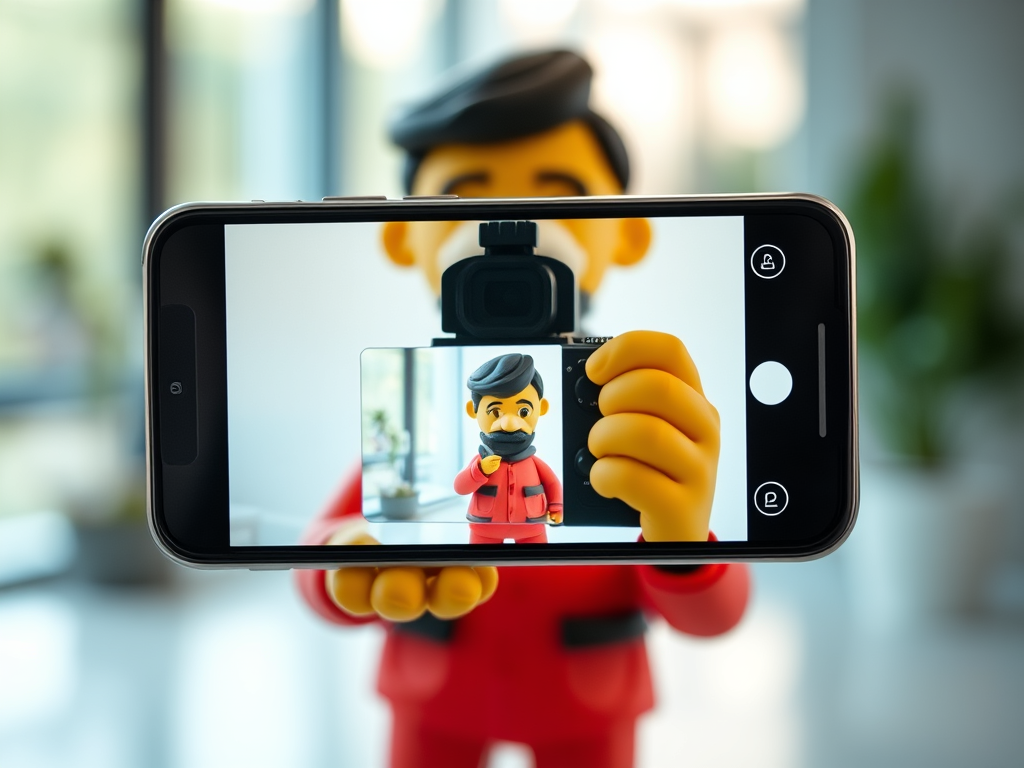
Take a photo of your screen

Sometimes it would be handy to get a permanent record of what is shown on your screen – this
is called a Screenshot. There are many ways of achieving this, here are the most common ones:

On a Windows Computer
Press the PrintScreen Key, you will then find a box on the top of your screen to select an area or the full screen. You can then paste it from the clipboard or make changes to it


On a Macbook or other Apple computer
Press and Hold the Shift key, the Command key and number 3. If you see a thumbnail in the corner of your screen, click it to edit the screenshot, or wait for the screenshot to save to your desktop.

On phones there are a few options:

On an iPhone, depending on which model you have you either:
a) press the side button and the Volume up button at the same time and quickly release both or
b) press the side button and the Home button at the same time and quickly release both or
c) press the top button and the Home button at the same time and quickly release both or
d) Say: Hey Siri, take a screenshot

On Android phones, depending which phone you have you can try:
a) Press the Power and Volume down buttons at the same time or
b) Press and hold the Power button for a few seconds, then tap Screenshot or
c) Press the 3 lines on the bottom of the screen to show previous apps and click on screenshot
d) Swipe the edge of your hand across the screen
e) Touch and hold 3 fingers on the screen
f) Say: Hey Google (or Hey Bixby), take a screenshot

Decluttering your device

Have you ever looked at how many apps you have on your phone and how few you are actually using?
You can get rid of the ones you don’t want, it will not only make it easier to find your apps, but it will also increase the available storage.


The process is similar on both Android and iPhone.

On Android, swipe up from the bottom of your
phone to show the ‘all apps’ screen, there might be more than one, either keep scrolling or swipe left or
right to see the other screens.

On iPhone, swipe left through your Home Screens until you see the App
Library where all your apps are in categories, like Utilities, Social etc.

Once there, long-press on an app you do not want, then select ‘delete App’ or ‘uninstall’ from the bubble that appears. On Android it might just say ‘App Info’, tap on that and it will show the entry for the app in ‘Settings’ where you can uninstall it.
If you are not sure what an app does, just open it by tapping it – if you don’t use it – delete it. A word of
warning though: there are some apps that are needed even if you don’t interact with it directly – DO NOT DELETE THOSE! They are Play Store or App Store, Settings, Phone, Contacts, Messages, Camera, also Clock, Calculator, Calendar, File Manager, Photos and Maps are probably best left on the phone.
Some apps cannot be deleted, but most of them can be disabled in Settings-Apps.

On a Windows computer you can do the same by clicking on the Windows icon to pull up ‘all apps’ and right-clicking any app you want to uninstall.

On an Apple Mac computer, open Launchpad, tap the Option (or ALT) key and click the little x on any
app you would like to remove.

After uninstalling a number of apps, it is probably best to restart your phone or computer to remove any ‘left-overs’.

Is your phone really backed up?

Recently, a friend of mine had to send in her phone to be repaired and was told to back it up. She
thought she did, but when it came back it was factory reset and the backups she thought she took were
very limited. We did eventually get most of her things back, but it reminded me that automatic backups might not do all that you require.


Both Android (Samsung, Nokia etc) and iPhones generally are set up to backup your contacts, photos
and files to the cloud (Google Drive, iCloud), so you can then download them again when something
happens to your phone, BUT and this is a big but, it might not always work correctly. The main problems are:

  • You are not connected to the internet often or long enough to actually upload (send to the
    cloud) these files
  • Your cloud storage is full and will not accept any new files
  • Your backups are not set up correctly

You should go into ‘Settings’ on your phone and search for ‘Backup’ and check what is actually
happening. It should tell you which things are backed up and if there have been any problems with
backing up. The minimum should be contacts and photos. But anything you do not want to lose (perhaps you use calendar for your appointments) should be included.
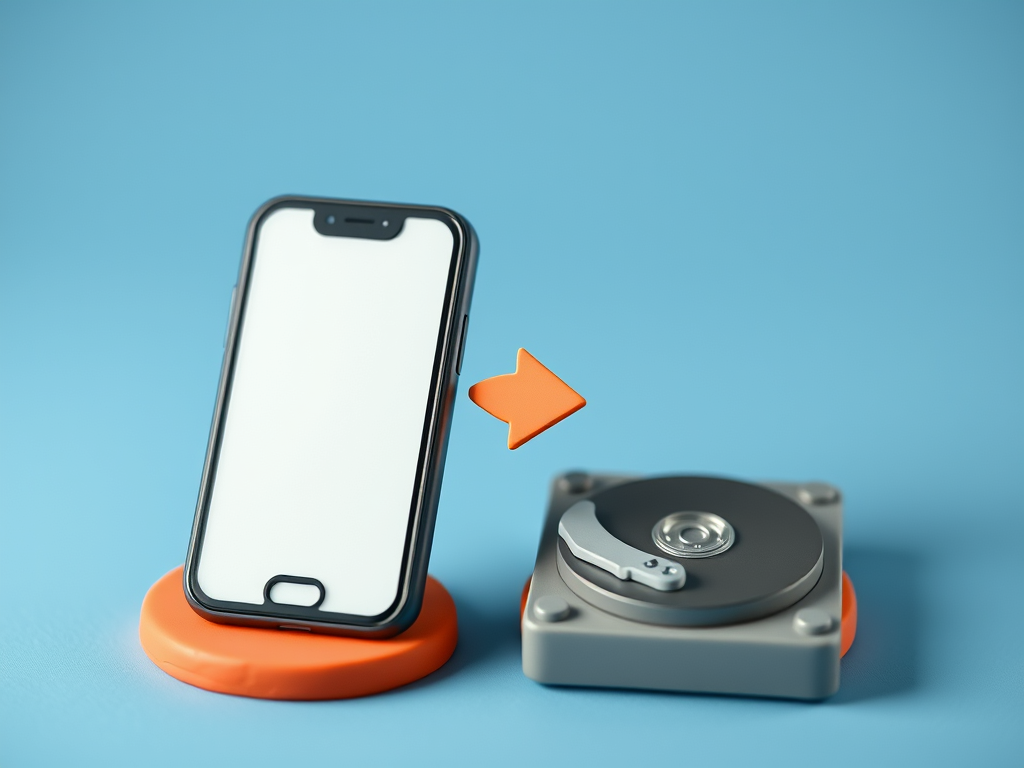
If you want to be extra sure that everything is backed up, you can always connect your phone to a
computer with the USB (charge) cable and copy all the files from the phone to the computer.
Now go and check if your backups are working 🙂

How to recover your email

Some time ago, you set up an email account, and you have been using it for ages. To make things easy,
you set your phone to log into the email account automatically -who wants to enter the password all the time. That’s fine, sort of.


BUT, and this is a big BUT, did you set up a recovery method? What will happen if you drop your phone in the water, if you accidentally run over it or just loose it? Can you log into your email account on the new phone? You have long forgotten the password you used, and when clicking this great ‘forgotten password?’ link, it wants to make sure you are who you say you are: by sending a code to your email address (which you cannot access at the moment); if you haven’t given the email provider another way to contact you and confirm it is you, you might be locked out of your email account for ever. And not even your email provider can recover it for you.


In your email settings there will be a ‘Recovery options’ entry; make sure you find this now and check
that you provided your phone number or another email address (with a password that you have
hopefully engraved onto your memory). And then make sure you keep this information up-to-date. Now you can happily forget your email password, and you will be able to regain access to your emails by using these recovery options.


Of course, another way to never forget your passwords (and create very secure ones on the fly) is to use
a password manager. A small program that keeps track of all your passwords for every account and every website and all you have to remember is the one Master Password that allows you access to this
program. But that is a subject for another article

Cloud Storage

You take lots of photos on your smartphone and one day you get a message that your cloud storage
(Google Photos or iCloud) is full, and you should buy more storage. What does it mean?
Your phone is usually set up to back up your photos to ‘the cloud’ (imagine a huge harddrive somewhere
in the world where everyone has some storage space allocated to them). That way, if something happens
to your phone, you don’t lose the photos and can download them again onto a different device. The
problem is that the storage space is limited and once it is full, nothing else will be saved to it.
You can do one of two things: move the photos from your phone to your computer, if you have one (I
wrote about that some time ago, and you can access this and my other articles on Dropbox – the link is
on my Facebook page); or you can buy more storage. This sounds a bit scary, but it is actually not all that
expensive.
Just a few examples (prices are approximate as of mid 2024):
iCloud gives you 5 GB for free, upgrade to 50 GB for about $18/year or 200 GB for around $55/year.
Google gives you 15 GB for free, upgrade to 100 Gb for about $25/year or 200 GB for $45/year.
OneDrive(Microsoft) gives you 5 GB for free, upgrade to 100 GB for $30/year or 1 TB (1000 GB) for
$110/year.
There are others like Dropbox or pCloud and more and all can be set up to save your photos (and
sometimes other files) automatically and usually come with some extras.
1 GB can store about 300–400 photos, videos use more storage space.

Password Managers

Passwords seem to be the bane of our online lives – but there is a way to make it so much easier.
Use a password manager!
A password manager is a small program/database that keeps all your passwords in a secure and easy to
access location. As an added bonus, it also can create strong passwords of any length, fill them in
automatically in any website and all you have to remember is the one strong password that allows you
access to all of them.
The file is encrypted and can only be accessed by using the correct master password. Even if someone
managed to get the file, they still cannot see any data in it – not even the provider of the password
manager can access the file.
There are many password managers out there – most browsers (Chrome, Edge, Firefox…) have one built
in. Or you could download and use a third party program like Bitwarden, ProtonPass or 1Password.
Compare features, ease of use and cost; many offer free versions with basic features that are perfect for
most home users.
But whatever you use, secure it with a strong password and do not forget it. If you use your browser to
store passwords, make sure that your device is secured with a password or pin as anyone with access to
your browser might be able to access your passwords as well.

What are phone and internet plans?

Do you understand what your phone or internet plan actually gives you?
Both come essentially with 2 measurements:

  • Phone plans have included calls/SMS and data
  • Internet plans have speed and download allowance

The calls/SMS refers to phone calls and text messages (using Messages or iMessages-green
bubbles) only, generally they are unlimited these days.
Data is everything else that your phone does: Facebook, including Facebook Messenger, video
calls, Weather, Emails, messages with pictures, Maps and all the other apps that get information
from the internet. This is shown in GB, which are 1000MB. A photo is usually around 2 to 8 MB,
an email without pictures is probably less than 1MB. But, a video (even a short clip on Facebook
or similar) can get in the 100s of MB very quickly and watching a movie can use GBs easily. So, as
long as you don’t watch videos, a small amount of GB on your phone plans is OK, just remember
that all your backups (like Google Photos) will also count towards your data. If you can link your
phone to your WiFi at home or elsewhere, you will not use your phone data; useful for updates
or other large downloads.


Internet also has a data allowance but usually much higher like 200GB or more. Again,
everything you do on the internet will count towards that, and if you stream movies on your TV
it will use about 2GB per hour in low resolution, but the better the picture quality the more data
it will use. So, 50GB per month will not allow you to binge watch many series.
Talking about streaming, the speed of your connection (measured in Mbps) will have to be at
least 25Mbps to allow you to watch a movie without the annoying circle–hiccups, if more than
one device is streaming, you will probably need a faster speed.


If you are not happy with your current plan for your phone or your internet, check out other
providers that might offer you more suitable plans or a better price.

Listening to the Radio

Perhaps you remember the early mobile phones that came with an FMRadio app and you had to
use the headphones in order to listen to the radio on your phone? These days there are many
more options to listen to almost any radio station in the world through an app. The larger radio
stations, like the ABC, have their own app that you can download and listen to their live radio
stations or to programs that you missed. More general apps allow access to radio stations around
the world, e.g. the Radio Australia app or the TuneIn app – you can choose the country, the genre,
local stations and all for free without headphones. Just search for “radio app” in the Google Play
Store or the App Store.
Did you like radio plays? They are available again, too. There are numerous websites that let you
listen to all sorts of exciting plays, from Abbot & Costello to Wild Bill Hickok. Just search on
Google or Safari for “old time radio plays” and you will be presented with a list of websites
where you are sure to find something that interests you. And all for free (including the old ads)!
Audio Books? Try LibriVox – it has a large collection of audio books that are in the public
domain, like some of the old classics.
Rather read yourself? Check out Project Gutenberg, it has eBooks that are in the public domain to
download and read for free.
And last but not least, there is the public library with a huge number of books, magazines, audio
books and videos that you can access and borrow if you are a member of you local council
library. I know of Hoopla, CloudLibrary and Borrowbox – it is best to talk to your local librarian
which they recommend.
Happy reading/listening
🙂

Attach photos to emails and messages

How do you attach a photo to an email or send a photo with your mobile?

For emails it is usually easier to first write the email and then attach the photo – for messaging, selecting the photo first and then writing the message is best. But either option can be used in both cases.

The principle is always the same, regardless of which device or tool you use. Go into your photos folder/gallery and find the photo you want to send. Select it and then find the ‘share’ button. This can look for example like this: or like this: or you might have to right-click on the photo and select ‘Share’ from the menu that appears – it all depends on the device you are using. Once you have clicked ‘Share’ more options will appear, again depending on the device you are using. You can select email, SMS (MMS), messenger apps (Messenger, Whatsapp etc); try and avoid the person icons that might appear – it is not always obvious which app is going to be used to send. Once you click on the app you want to use, it will open and you can create and send the email, message as you usually would and the photo attaches itself to it. Try it out to see how it works!

If you want to send more than one photo it is generally easier working the other way around: create your email or message and before you send find the attachment icon. Now this time it might be a paperclip, a small picture or variations of these – you will have to do a little looking around. Once you click that icon you will be given options to look for your photos in their folders and you can select more than one, just by clicking on the individual photos. When you are done, select Done or similar and you will be taken back to your email or message and can send it.

Just a word of warning, photos can be quite large and sometimes you can only send 2 or 3 photos at once before you get an error message, in that case send multiple messages or use a cloud sharing option.

You can use most cloud services (Google Drive, Dropbox, OneDrive…) for this. Just upload your photos to your cloud and then ‘share’ (usually a right-click will offer this option) using email or messaging. It will create a clickable link that allows the recipient to access those photos (but nothing else on your cloud drive). The receiver of the link does not need to have the cloud service themselves, as the photos are displayed directly in a browser (Chrome, Edge, Firefox…). If you are using Gmail it might even do this automatically for large files.

Another way is offered by file transfer services like WeTransfer or SendAnywhere, usually without having to sign up, but these links have a limited lifespan (lets say 7 days) before they expire.

Of course, there is always the option to load the photos onto a USB drive (thumb drive)and give that to the recipient.

There are other more technical ways, but this is not the place to explain those.

A tidy inbox

Are you one of those people who can’t find the important emails among all the spam, advertising and
newsletters?
It is quite easy to control your inbox with a few simple steps:
Go through your inbox one email at a time and check each email for its worth:

  • If it is something you want, there is nothing you have to do. Go to the next email.
  • If it is a newsletter, special offer etc from a business you have bought from in the past, again ask
    yourself if you really want these emails. If not, there should be a ‘unsubscribe’ link most likely
    right at the end of the email (generally quite small and faint). Click that, it will direct you to a
    website, and sometimes you have to confirm that you want to unsubscribe. They might ask you
    why, but you don’t have to answer that. That’s it! You might get a confirmation email, or it might
    take a couple of days to go through their system, but you should no longer be bombarded with
    ‘special offers’.
  • If this does not work, or if it is an email you really don’t know how they even got your email
    address, you can block them. Depending on your email program or provider, there should be an
    option somewhere (typically where you find the Reply and Forward buttons) to Block, Mark as
    Spam, Mark as Junk or similar. Simply press that, and you should no longer receive emails from
    that address. Sometimes you even have the option to ‘report as spam’, but that is optional.
    If you follow these steps for a few days (or weeks, depending on the amount of emails to go through),
    your inbox should look a lot more manageable and contain mostly wanted emails. Also, keep
    unsubscribing or blocking any new emails that will turn up.