What is two-factor-authentication??

More and more websites and apps are now using 2FA or two-factor-authentication,but what
is it?

One of my favourite Tech-Explainers (AskLeo.com) puts it like this:

“Two-factor authentication adds something you have — like a mobile device — or something you are — like your fingerprint — to something you know — your password — to confirm you are authorised to access an account. There are contingencies for losing your second factor, as well as ways to make two-factor less intrusive in day-to-day use. Even if they know your password, hackers can’t get in with two-factor enabled. This is how two-factor authentication keeps you secure.”


Generally you sign in as usual (that’s the first factor of authentication) and then you will get a code sent to your phone via email or SMS that you will have to enter into the login screen as well. That is the second factor of authentication.
That second factor can also be from an authentication app (e.g. Google Authenticator, Aegis, etc) that will create these random codes for you once it has been set up with the website.
Or, if you have fingerprints or face unlock on you can use that.

A website generally only requires the second factor when logging in on an new device or if you haven’t signed in for a long time. And there are still ways to recover your account if you have lost a device that you used for authentication.

With all important accounts (email, payments, etc) it is essential that you provide at least one recovery email address or phone number in case you have no longer access to a particular device or you have forgotten your password. These handy ‘Forgotten Password’ links only work if you can proof in another way that you are who you say you are, with a second email address, a phone number or other identifying items. If you do not have a recovery option and forget your password, there is usually nothing you can do to recover the account and you will lose access to it permanently. This also applies to your Facebook account, but that is a subject for another article soon.
Passwords!

Passwords! Can’t live with them and can’t live without them 😉
They can be the bane of our online lives, but there are some tricks to make things a bit easier.


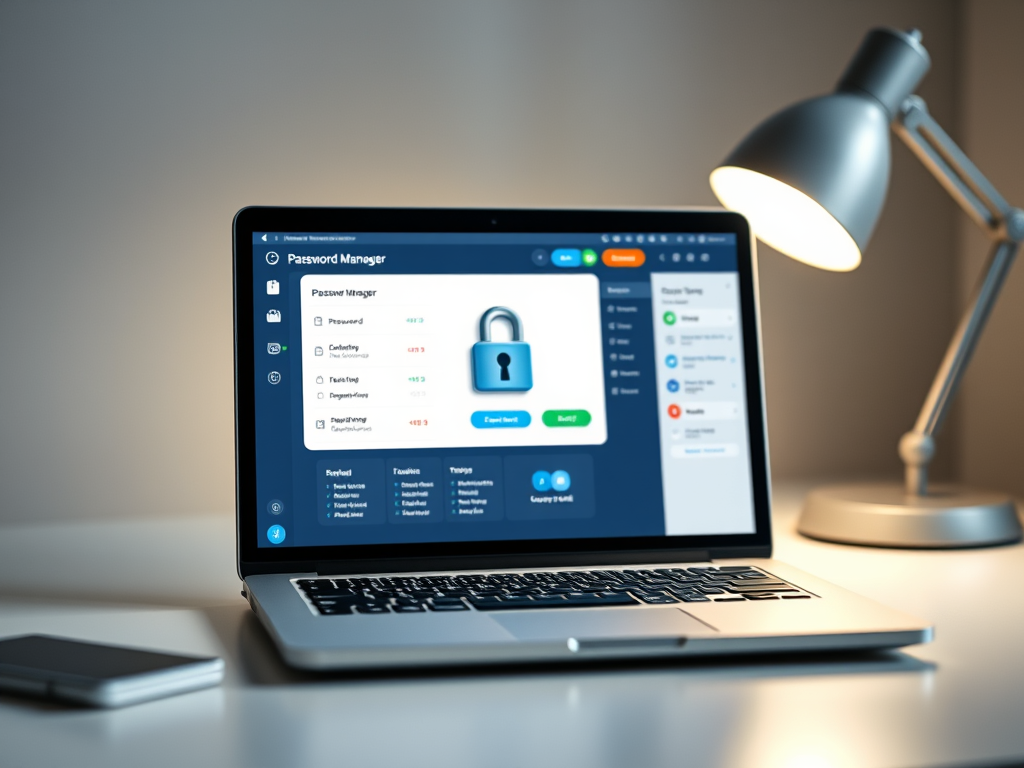
I hope you all know to use different passwords for different sites, and not to make them too obvious (‘1234’ comes to mind). But remembering all these passwords is a challenge even for the most organised person; the best way is a password manager, which is a program that collects all your passwords and presents them to you when needed, all you need to remember is ONE master password.

Some browsers (Chrome, Edge…) have this built in (when it asks you to remember the password), but you can also get free programs that work across any browser and device and that automatically create safe passwords for you.

Second best option would be a ‘little black book’ of any colour, where you note all your passwords, make sure to add the user id and the website. Needless to say, guard this book with your life and don’t leave it lying around.

Ideas for safe passwords include using the starting letters of a song or poem, e.g. ‘Hdsoaw’ – Humpty Dumpty Sat On A Wall, easy to remember but hard to guess.
Or use 3,4 or 5 unrelated words, like leftelephantrugbyhouse – who would guess that or find it in a dictionary?

There are other ways to identify yourself, for example your fingerprint reader on your phone or tablet, or your face or a special dongle you have to plug into your computer, but these are only available on a limited number of devices and sites.
Industry is working on making things easier for us, but until then we just have to learn to
work with what they give us.

Password Managers

Passwords seem to be the bane of our online lives – but there is a way to make it so much easier.
Use a password manager!
A password manager is a small program/database that keeps all your passwords in a secure and easy to
access location. As an added bonus, it also can create strong passwords of any length, fill them in
automatically in any website and all you have to remember is the one strong password that allows you
access to all of them.
The file is encrypted and can only be accessed by using the correct master password. Even if someone
managed to get the file, they still cannot see any data in it – not even the provider of the password
manager can access the file.
There are many password managers out there – most browsers (Chrome, Edge, Firefox…) have one built
in. Or you could download and use a third party program like Bitwarden, ProtonPass or 1Password.
Compare features, ease of use and cost; many offer free versions with basic features that are perfect for
most home users.
But whatever you use, secure it with a strong password and do not forget it. If you use your browser to
store passwords, make sure that your device is secured with a password or pin as anyone with access to
your browser might be able to access your passwords as well.