
When your phone or laptop has been set up for while and automatically links to your wifi, you don’t think about it anymore. But what happens if something in your WiFichanges, you want to link up at a new placeor have a new device? Let’s go through it.
On Windows
On the right of your taskbar (the bottom strip of your desktop) there should be a small icon looking like a globe 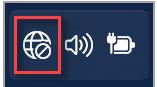 , when you click on that a box opens with a number of settings, on the top left is Wifi. Click on the down-arrow next to it and you should be presented with a list of available wifi networks. Choose the one you want, enter the password and select ‘connect automatically’ if you want . Confirm whether the device should be discoverable in the network (only use this at home), and you should be in, showing ‘connected’.
On Mac
When a Wi-Fi network is available, the Wi-Fi icon  is shown in the menu bar at the top rightof the screen. Click the icon, then choose a network to join. Enter the password and you should be connected.
On Android (Samsung, Nokia etc)
Swipe down from the top of the screen and either find a button ‘Wifi’ or ‘Internet, LONG press it and it will open the settings app (or you can just open the settings app and search for wifi). Make sure wifi is toggled on and tap the network you want to connect to from the list shown. Enter the password and auto-connect if you want, and you should be connected.
On Iphone/ipad
From your Home screen, go to Settings > Wi-Fi.
- Tap to turn on Wi-Fi. Your device will automatically search for available Wi-Fi networks. Tap the name of the Wi-Fi network that you want to join. You will be asked to enter the network’s password, then look for the blue checkmark next to the network name, and the Wi-Fi icon in the upper corner of your screen. This means you’re successfully connected.
Wifi can either come from your NBN, from a public network in a caféor similar or from a hotspot (using a phone as the wifi provider). Be careful if you are using a public wifi as they might not be very secure – so avoid doing your banking or such things there.
Discover more from Ask Ursula - Tech Help
Subscribe to get the latest posts sent to your email.
 Ask Ursula - Tech Help